
Workspaces
Workspaces
A workspace keeps one client’s, brand’s, or market’s work together inside your organization: its Diagnostics, action items, schedules, and history.
Your organization holds your workspaces. A workspace usually has a website, and the Diagnostics run on that website are filed in it, so its scores, findings, and action items are never mixed up with another client’s or another market’s. The Portfolio lists every workspace on one page, and shows a client’s workspaces under one row once you assign them to a client.
Client workspaces and brand workspaces
Which kind of workspace you get follows your plan:
| Plan | Workspaces | Diagnostics per workspace each month, by default |
|---|---|---|
| Agency plans: Consultant, Studio, and Firm | Client workspaces, one per client: up to 25 (Consultant), 100 (Studio), or 250 (Firm). A workspace your client pays for with its own Business plan doesn't count toward your plan's client workspaces. You can invite people from the client to read what you deliver in their workspace. | 2 |
| Enterprise | Unlimited brand workspaces — one per brand, division or region you own or operate, each with its own dashboard, action items and scheduled Diagnostics. Brand workspaces have no outside viewers or members. | 1 |
| Free, Starter, and Pro | A single dashboard for your own business (the one workspace on these plans), with no client or brand workspaces. | – |
The per-workspace number is a ceiling, not a reservation: every Diagnostic also counts toward your organization’s monthly allowance. Owners and admins can change a workspace’s ceiling from the Portfolio (see Set a workspace’s monthly cap).
What a workspace holds
- A website, usually. A domain (
example.com), a subdomain (uk.example.com), or a country or language folder (example.com/au). It decides which Diagnostics are filed in the workspace. - Diagnostics and reports. Every Diagnostic filed in the workspace, and the scans and reports ordered from it.
- Action items. The findings of its Diagnostics, as work to assign, track, and verify.
- A schedule. An optional monthly or quarterly Diagnostic that repeats the latest one.
- A monthly cap. How many Diagnostics can run in it each month.
While a workspace is selected, the Reports, Trends, and Action items pages show only that workspace’s work.
Moving between workspaces
The switcher at the top of the dashboard has two parts: your organization, then the workspace. Choose a workspace to open its dashboard, or choose the organization’s org-wide level to see work that isn’t filed in any workspace. Type in the list to find a workspace by its name, website, client, or market, in any of its lists. While you type, every client’s workspaces are shown. On a phone, the switcher sits at the top of the menu.
On an agency plan, the active workspaces you put in a client are listed under the client’s name, with how many are listed there. Choose the name to show or hide them; the client of the workspace you’re in starts open. Workspaces in no client are listed under Other workspaces. Attached and archived workspaces stay in their own lists. On Enterprise, the same headings are called groups.
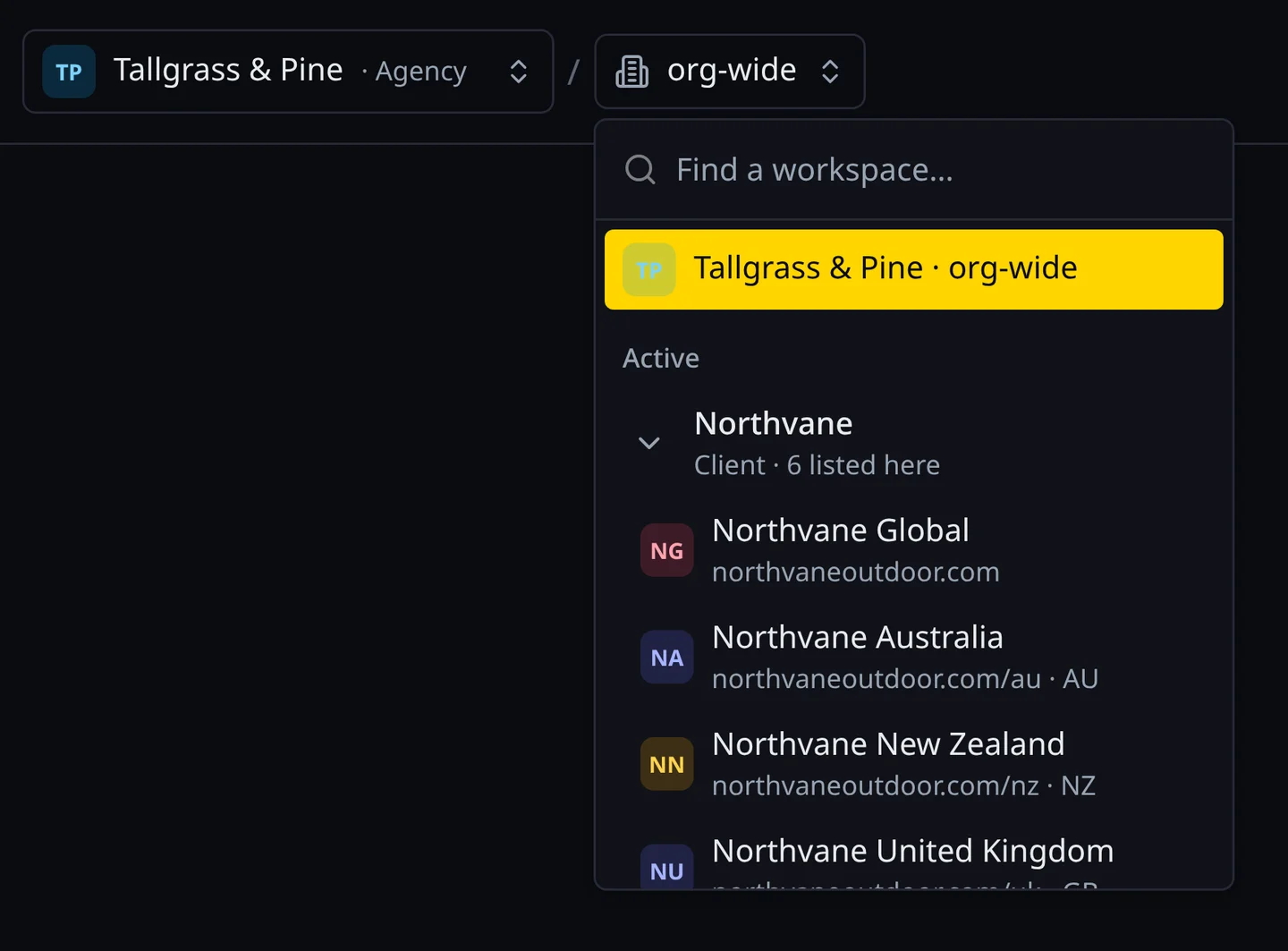
Workspaces that other organizations share with you appear in the switcher under Shared with you.
Creating a workspace
Workspaces belong to a team account, and an owner or admin of the team account creates them. Choose New workspace in the sidebar, give the workspace a name, and enter its website. Diagnostics you ran earlier on that website in this organization, and that aren’t in a workspace yet, move into the new workspace. If the website you enter is a country or language folder, the form asks whether the folder is its own site or the workspace covers the whole domain: Country and brand sites explains the choice.
The form also asks which client the workspace belongs to: one you already have, a new one (choose New client… and name it), or none. If a workspace on the same domain, such as example.com/au when you enter example.com/uk, is already in a client, the form offers that client, and nothing is put in it until you choose it.
The Market shows the country and language the form reads from the website, such as Australia for example.com/au. Change either one if the site serves a different market, or choose No country or No language.
To open several markets at once, enter the domain’s root, such as example.com, and move on from the field. If the site has versions for two or more countries or languages, the form lists them and offers to create a workspace for each, in the client you chose. Every version is selected; deselect any you don’t want, or choose Deselect all and then select the ones you want. A version you already have a workspace for is marked and left out. Each workspace is named from the name you entered and takes its market from its own address. Before you confirm, the form says how many workspaces it creates and, on a plan with a limit, how many of its client workspaces are left. If the limit runs out partway, the rest aren’t created, and the form lists which were created and which weren’t.
In this section
- Country and brand sites: a workspace for each market or brand, which workspace a Diagnostic is filed in, and what a Diagnostic of a country folder reads.
- The Portfolio: every workspace on one page, grouped by client, and scheduling or capping several workspaces at once.
- Team accounts & billing: what happens to a team account, and its workspaces, when the owner’s plan changes.