
Workspaces
Country and brand sites
One workspace per market or brand: a country folder, a country domain, a subdomain, or a separate brand site each get their own Diagnostics, action items, and history.
A business that sells in several countries, or runs several brands, rarely has one marketing stack. Give each site its own workspace and each one is measured against its own baseline, ranked beside the others in the Portfolio, and can be shared with the team that runs it. For the agency workflow around this, see the playbook Cover a client that runs several markets or brands.
How the sites are set up
| Set up as | Example | Enter as the workspace’s website |
|---|---|---|
| A country or language folder on a shared domain | example.com/au, example.com/ca/fr | The folder, then choose Make … its own site |
| A domain of its own | example.co.uk | The domain |
| A subdomain | uk.example.com | The subdomain |
| A separate brand | examplebrand.com | The brand’s domain |
Create a workspace for each market
- Choose New workspace in the sidebar. Only an owner or admin of the organization can create one.
- Name it after the market, such as “Example Australia”.
- Enter the market’s website. For a country or language folder, two choices appear under the field: Make example.com/au its own site (selected) and Use all of example.com. Keep the folder for a market workspace.
- Choose the client the market belongs to under Client, or New client… for the first of its markets. Once one of its markets is in a client, the form offers that client for the others on the same domain.
- Check the Market: the country and language read from the website. Change either one if the site serves a different market.
- Choose Create workspace, and repeat for each market.
To open several markets at once, enter the domain’s root, such as example.com, and move on from the field. If the site has versions for two or more countries or languages, the form lists them and offers to create a workspace for each, in the client you chose. Every version is selected; deselect any you don’t want, or choose Deselect all and then select the ones you want. A version you already have a workspace for is marked and left out. Each workspace is named from the name you entered and takes its market from its own address. Before you confirm, the form says how many workspaces it creates and, on a plan with a limit, how many of its client workspaces are left. If the limit runs out partway, the rest aren’t created, and the form lists which were created and which weren’t.
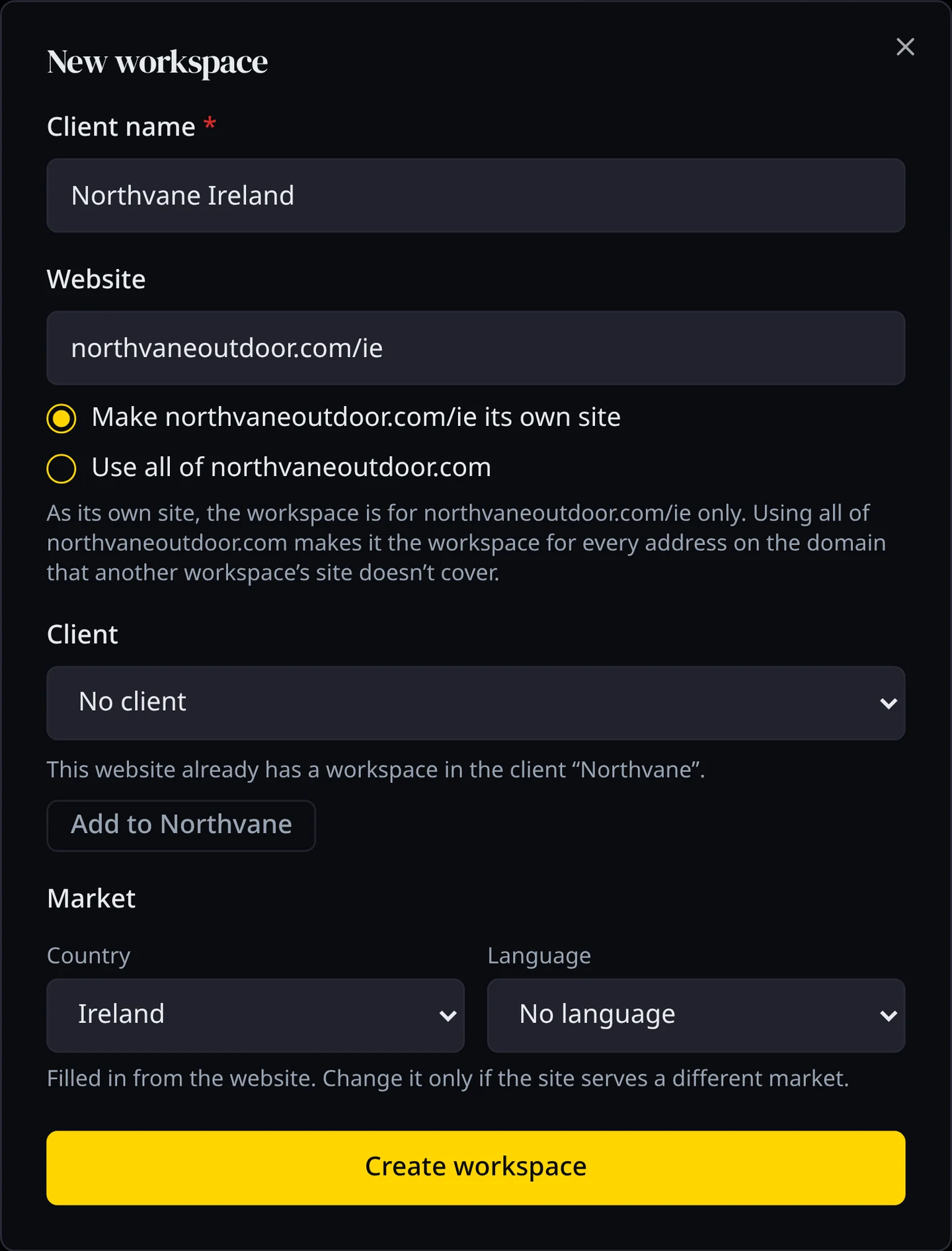
As its own site, the workspace is for that folder only. Use all of makes the workspace cover every address on the domain that another workspace’s site doesn’t cover, which is what you want for a client’s global or head-office site.
A folder can be its own site only when it names a country or language, such as
/uk, /en-au, or /ca/fr, up to two folders deep. For any other
path, such as example.com/shop, the workspace uses the whole domain, and the form
says so. Each organization can have only one workspace for a given site.
Putting a client’s markets in one client lists them together in the switcher. Each market is still its own workspace, with its own Diagnostics and its own monthly cap.
On an agency plan, each market’s workspace is a client workspace in its own right: a client with eight country sites uses eight of your plan’s client workspaces. A workspace your client pays for with its own Business plan doesn't count toward your plan's client workspaces. Each has its own monthly cap on Diagnostics.
Which workspace a Diagnostic is filed in
The workspace a Diagnostic is filed in decides who can read it, and whose monthly cap it uses. The rule is the same however the Diagnostic starts: from the app, on a schedule, or from a connected AI assistant.
- Started inside a workspace (with it selected in the switcher): filed in that workspace, whatever the address.
- Otherwise, by its address: filed in the workspace whose site contains the address. When two do, the more specific wins, so a folder workspace beats a whole-domain one.
- When no workspace’s site contains the address, it depends on the rest of the
domain:
- If other workspaces have sites on the same domain, the Diagnostic isn’t filed in any of them. Its report says so to the people who can move it.
- If no workspace has a site on that domain, a workspace with the Diagnostic’s business name takes it, when exactly one has that name. Otherwise the Diagnostic stays at the organization level.
An example
A client has workspaces for example.com/au and example.com/uk, and none
for example.com as a whole:
| Diagnostic of | Filed in |
|---|---|
example.com/au/shop | The example.com/au workspace: the address is inside its folder. |
example.com/uk | The example.com/uk workspace. |
example.com/nz, or example.com itself | No workspace. The domain has workspaces, but neither contains this address. To the people who can move it, the report says: “This Diagnostic wasn't added to a workspace. example.com has workspaces for example.com/au and example.com/uk, and this address is in neither. Move it from the report's menu.” |
To catch those addresses, open a workspace for the whole domain (enter example.com,
or a folder and choose Use all of example.com). From then on, Diagnostics of
/nz and of the domain itself are filed there, while /au and
/uk keep their own workspaces.
Moving a Diagnostic to another workspace
Open the report and choose Move to…, then pick a workspace, or No workspace (organization level). Its action items, and any assessment or report built on it, move with it. An owner or admin of the organization, or the person who ran the Diagnostic, can move it.
A workspace for a country folder, opened when the client already has a workspace for the whole domain, takes that folder’s new Diagnostics from then on, unless one is started from inside the whole-domain workspace. Earlier Diagnostics stay in the whole-domain workspace until you move them.
Checking the right version of a site
On the Target step of a new Diagnostic, enter the domain’s root, such as
example.com. If the site has versions for two or more countries or languages, a
panel lists them and asks which one to check. A version on another domain is marked
“(a separate site)”.
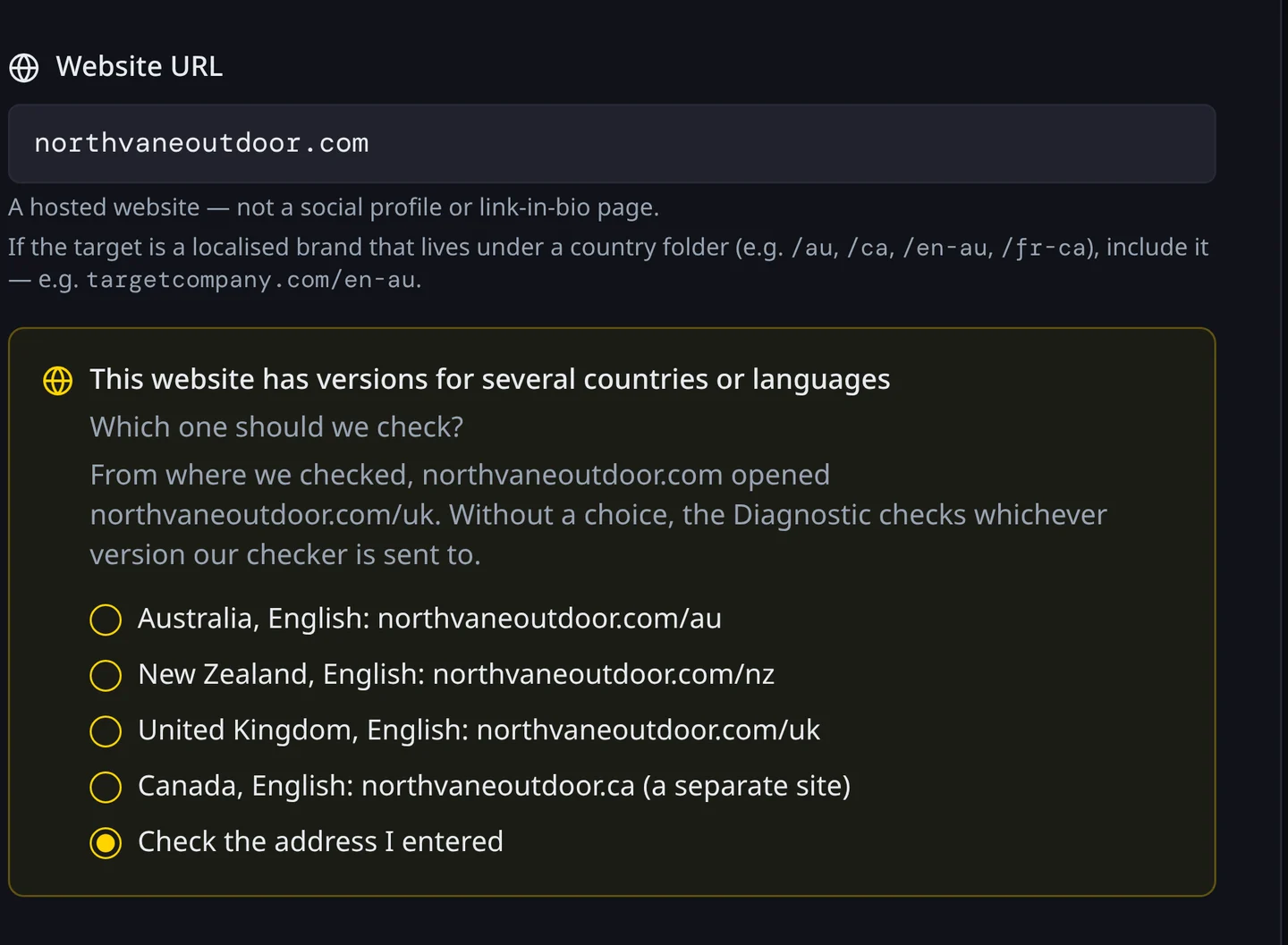
- Choosing a version replaces the address in the form. It does not set the Target market, which stays your choice.
- Check the address I entered keeps the address as you typed it.
- When the root sent our checker to one of the versions, the panel says which, because without a choice that is the version the Diagnostic would check.
- The panel never holds up the form. If the check can’t tell, nothing appears, and you can continue.
The same panel appears on the free Diagnostic form on this site.
What a Diagnostic of a country folder reads
A Diagnostic of example.com/au/ reads the Australian site: its pages, key pages and policy pages are read under that folder. Files that exist only at the domain root, such as robots.txt and the sitemap, are read there, and a policy page found only at the root is labelled as outside the folder. Set the Target market to the country the site serves, and the Diagnostic checks whether the site signals it: language tags, alternate-language links, local currency, phone number and address.
On a domain with country folders, every folder’s workspace shares the readings of the domain itself, such as email authentication, Domain Name System (DNS) records, the security certificate and security headers, so those findings repeat in each market. Some other readings also cover the whole domain: the sitemap’s page counts and publishing cadence, the blog posts and offer pages sampled, the search-ranking figures, and the address an action item names for the fix.
Where each market is loaded from
Each Diagnostic loads the page in a browser near the country the site serves, worked out from the site’s own signals, starting with its web address. Sites for Australia and New Zealand load from Sydney, for Canada from Toronto or Montréal, and for the United States from California. Sites for the UK, Europe and every other country load from the Netherlands. It matters because a site can answer a visitor from another country with a different page or consent banner, or not at all.
Where a page is loaded from follows the site’s own signals. You cannot choose it, and setting a Target market does not change it.
Citation Scans for a market
For a market in the United States, Canada, the United Kingdom or Australia, a Citation Scan shows which domains AI answers cite for the client’s category in that country. Each country is its own scan. Google AI Overview and AI Mode are rendered from the country you choose. ChatGPT, Claude and Perplexity are given it as a location hint, which the model may not follow. Gemini cannot be location-targeted at all, so its answers are not located, and the scan says so. A scan ordered from a country folder’s workspace is of that folder: when the scan shows the client’s share and answers cited its domain, it also shows how many of them cited a page in the folder, and it is compared only with earlier scans of the same folder.
A Citation Scan can currently be run for the United States, Canada, the United Kingdom or Australia only, so a market elsewhere has no scan of its own. Its share counts a citation of any page on the client’s domain, whichever country folder it sits in; for a country folder, when answers cited the domain, a separate line under the share shows how many of them cited a page in the folder.
Several brands
A brand works like a market: a workspace for each brand’s site, side by side in the Portfolio. A brand that also runs country sites gets a workspace for each of them. On an agency plan these are client workspaces, and you can invite each brand’s team to its own. On Enterprise they are brand workspaces. Brand workspaces have no outside viewers or members.
Next
- The Portfolio: rank the markets side by side, and put them all on a schedule.
- The multi-market playbook: the agency workflow, from mapping the client’s sites to giving each country team its own view.