
Workspaces
The Portfolio
Every workspace on one page, with one row per client once you have clients: sort it to see which clients or markets are furthest behind, and schedule or cap several of them at once.
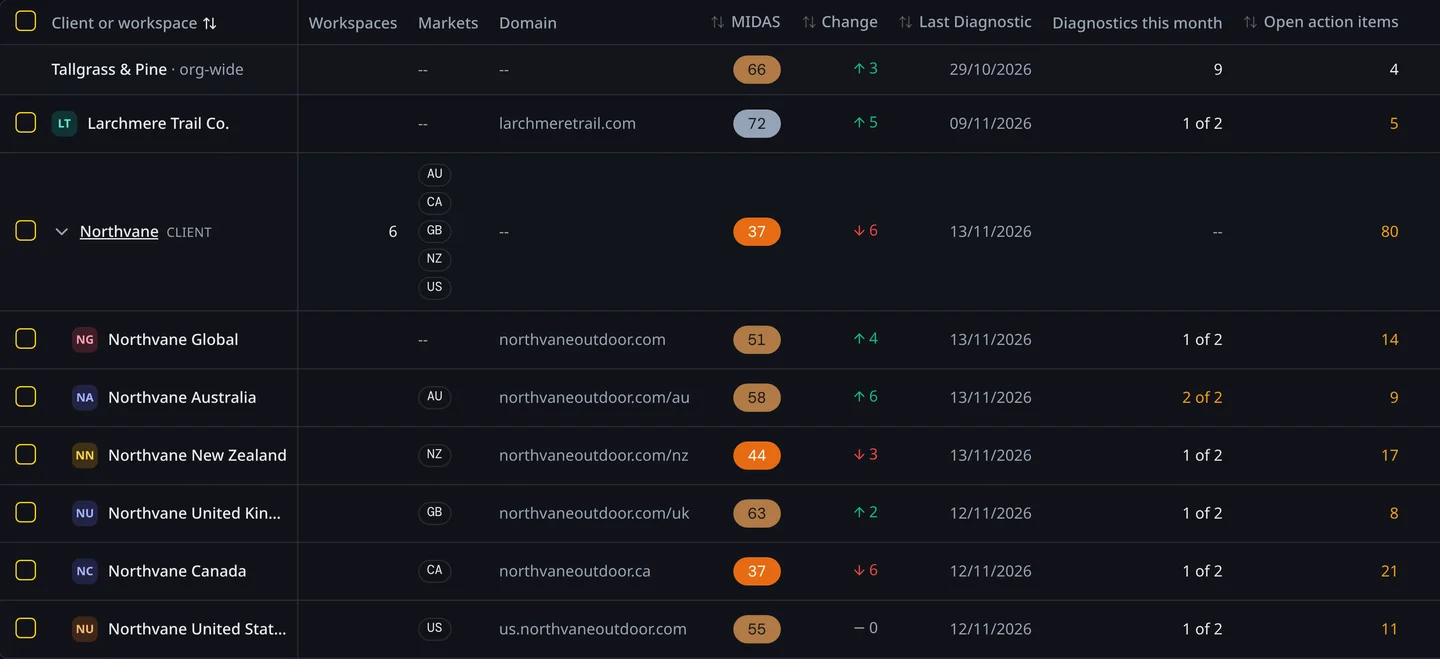
The Portfolio is the home page of a team account on an Agency plan or Enterprise. Each row is a workspace, scored by the MIDAS (Marketing Infrastructure Diagnostic Audit Score), out of 100, of its latest Diagnostic, or a client that groups several workspaces (see Clients and markets). The first row is your organization’s own org-wide level, for work that isn’t filed in a workspace. Select a workspace’s name to open its dashboard.
What each column shows
| Column | What it shows |
|---|---|
| Workspace | The workspace’s name. Sortable. |
| Client | The client the workspace is in, once your organization has clients. |
| Market | The country, language, or both that the workspace’s site serves, where one is set. |
| Domain | The workspace’s website. |
| MIDAS | The MIDAS score of its latest scored Diagnostic. Sortable. |
| Change | That score minus the one before it. Sortable. |
| Last Diagnostic | When its latest Diagnostic ran. Sortable. |
| Diagnostics this month | How many it has used, of its monthly cap. |
| Open action items | Action items not yet done. Sortable. |
| Next scheduled Diagnostic | When its schedule runs next, if it has one. Sortable. |
| Status | Whether the workspace is active. |
These are the main columns. Owners and admins also see each workspace’s Stage and Account manager, and on an Agency plan its Client plan.
Above the table, cards give the organization’s totals: Diagnostics run, workspaces with a Diagnostic, the average MIDAS score, and how many action items are done. Below them, What changed this week lists score moves and other changes across the workspaces.
Clients and markets
A client groups the workspaces that belong together, such as one client’s country sites or brands. On Enterprise, a client is called a group. A client is only a way of filing workspaces: each one keeps its own people, Diagnostics, and monthly cap. Clients don’t count toward your plan’s limits; the workspaces in them count just as they would outside one.
Once your organization has a client, the Portfolio shows one row for each client and one for each workspace that isn’t in a client. Select a client’s name to open it and see its workspaces. The client’s row sums them up:
- Workspaces: how many it has, or how many match while a search or filter is on, such as “3 of 5 match”.
- Markets: the countries and languages of its workspaces.
- MIDAS: the lowest score among its workspaces. Hover over it to see which one.
- Change: the largest drop. It is empty when no workspace dropped.
- Last Diagnostic is the latest across its workspaces, Open action items the total, and Next scheduled Diagnostic the soonest.
- Stage and Account manager show the value its workspaces share, or “Mixed”.
- Diagnostics this month is shown on each workspace once the client is open, not on the client’s row.
Sorting orders the clients by these figures: sort MIDAS from low to high to put the client with the weakest market first, or Change from low to high to put the largest drop first. Turn off Group by client (Show groups on Enterprise) to see every workspace in one list, with its Client and Market. The Portfolio remembers your choice in this browser.
Owners and admins can put workspaces in a client: tick them, choose Add to client, then pick a client or create a new one. A workspace already in another client moves to the one you pick. A client’s row also has Rename and Delete. Deleting a client keeps its workspaces, just no longer in a client.
Finding workspaces
Search by name, website, client, or market code, or filter by MIDAS score band. Owners and admins can also filter by pipeline stage and, on an Agency plan, by client plan. To see which markets are furthest behind, sort by MIDAS; to see which ones slipped, sort by Change.
Once your organization has clients, the Client filter shows one client’s workspaces as a list, or with No client, the workspaces that aren’t in one. The Market filter lists the countries and languages your workspaces serve. With clients shown, a client appears when any of its workspaces is in that market, and opening it shows just those. While the client plan filter is on, the Portfolio lists workspaces one by one.
Acting on several workspaces at once
Owners and admins can tick workspaces in the first column. Ticking a client’s row selects its active workspaces, or the ones that match while a search or filter is on. A bar appears above the table with actions for everything selected. Each action reports what happened for each workspace, and a workspace where it didn’t go through stays selected so you can try again.
Schedule Diagnostics
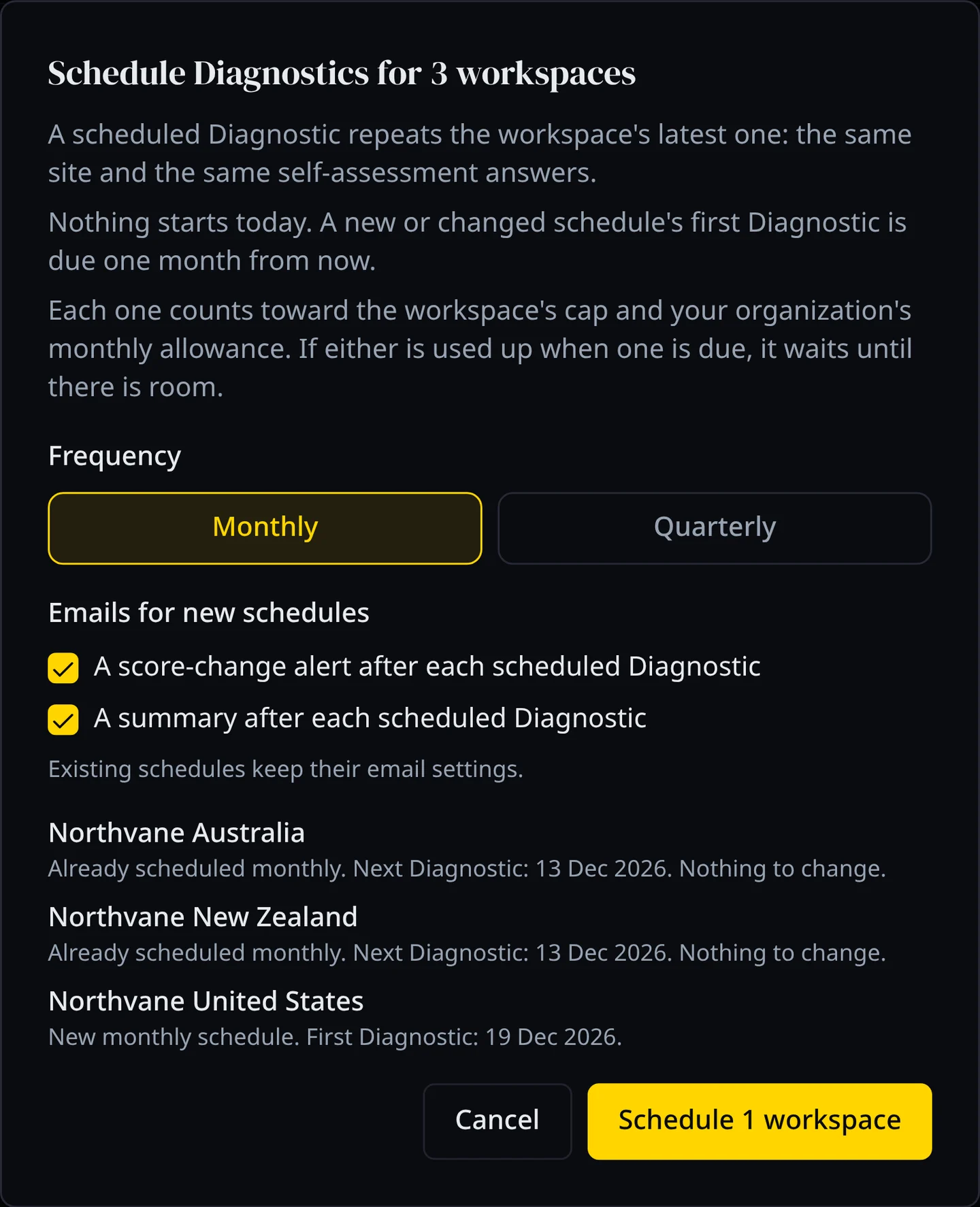
Choose Schedule, then Monthly or Quarterly.
- A scheduled Diagnostic repeats the workspace’s latest one: the same site and the same self-assessment answers. A workspace with no Diagnostic yet can’t be scheduled until it has one.
- Nothing starts today. A new or changed schedule’s first Diagnostic is due one month, or three months, from now.
- Each one counts toward the workspace’s cap and your organization’s monthly allowance. If either is used up when one is due, it waits until there is room.
- A workspace already on that schedule is left as it is; one on another frequency is changed, and a paused schedule resumes.
For new schedules you can choose a score-change alert email, a summary email, or both, after each scheduled Diagnostic. Existing schedules keep their email settings.
Set a workspace’s monthly cap
Choose Set cap to set how many Diagnostics can run in each selected workspace each month, from 0 to 1,000. The new cap applies straight away. One workspace’s cap can also be changed from Workspace settings on its dashboard. Until you set one, a workspace on an Agency plan has a cap of 2 a month, and a brand workspace on Enterprise a cap of 1.
The cap is a ceiling for that workspace, not a reservation: every Diagnostic also counts toward your organization’s monthly allowance.
What the Portfolio does not do
- The Portfolio ranks markets by MIDAS score, change since the last Diagnostic, and open action items. It has no view that compares pillar scores across workspaces. Clients are one level deep: a workspace sits in one client at most, and a client cannot hold another client.
Next
- Country and brand sites: set up a workspace for each market or brand.
- Reports & exports: what a report contains, and how to export one.